WhatsApp is one of the most widely used messaging channels across Saudi Arabia and the wider MENA region, making it an important way for businesses to connect with their customers.
But sending marketing campaigns to thousands of contacts, or delivering automated verification codes, works differently from chatting one-to-one — it runs on the WhatsApp Business Platform.
This guide covers the technical setup, in order: create your WhatsApp Business Account with Meta, add and verify your phone number, and connect it to Arsel so you can start sending.
WhatsApp Business app vs. WhatsApp Business Platform
Before you start, it helps to know which WhatsApp solution you're setting up.
- The WhatsApp Business app is a free mobile app for small businesses that reply to customers by hand — managing conversations, a business profile, and basic messaging from one phone. It's a fine starting point, but it doesn't offer the automation or integrations the Platform does.
- The WhatsApp Business Platform (API) is built for messaging at scale: sending campaigns to many contacts, automating communications, sending order and delivery updates, delivering one-time passwords (OTPs), and connecting WhatsApp to your business systems. It has no app of its own — you reach it through integrations, Meta's Cloud API, or a provider such as Arsel.
If your goal is marketing campaigns or automated verification codes, you need the Platform. The rest of this guide sets it up.
Step 1: Create your WhatsApp Business Account in Meta
Before you can connect anything, you need a WhatsApp Business Account (WABA) in Meta. It's built from three pieces:
1- Create your Meta Business Portfolio
This is where Meta organizes your business and its assets (formerly Business Manager).
1- Go to Meta Business Suite
2- Log in with Facebook
3- Create a new business portfolio if you don't have one
4- Enter your business name, contact information, and the other requested details.
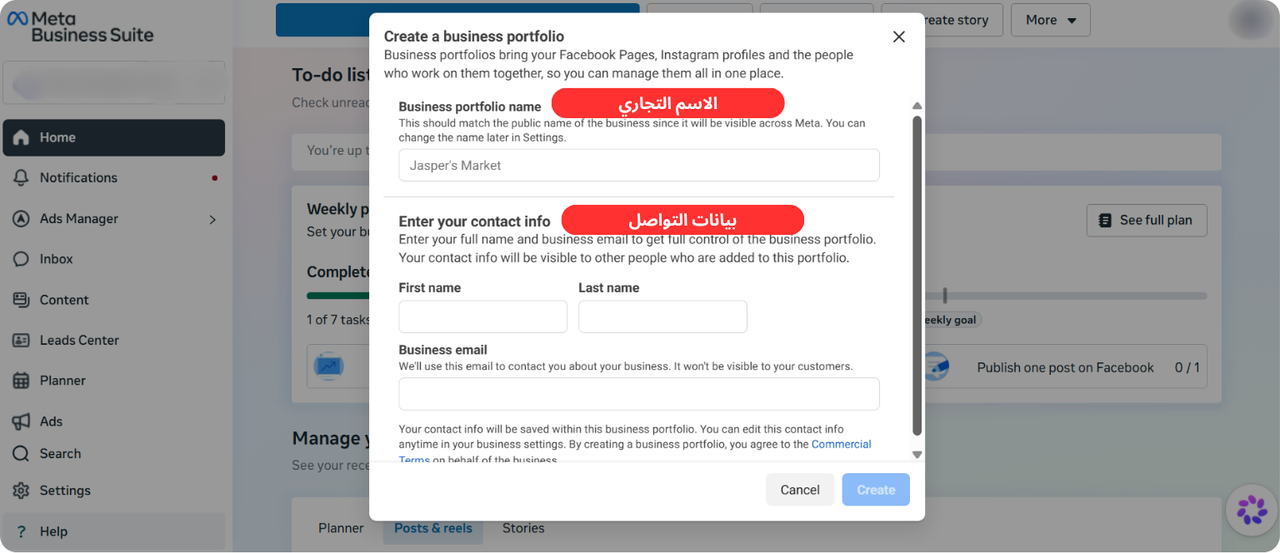
If your company already manages a Facebook or Instagram page, you probably have one already.
2- Add a WhatsApp Business Account (WABA)
1- Open Meta Business Suite
2- open Settings → Business Assets → WhatsApp Accounts
3- click Add
4- Create a new WABA.
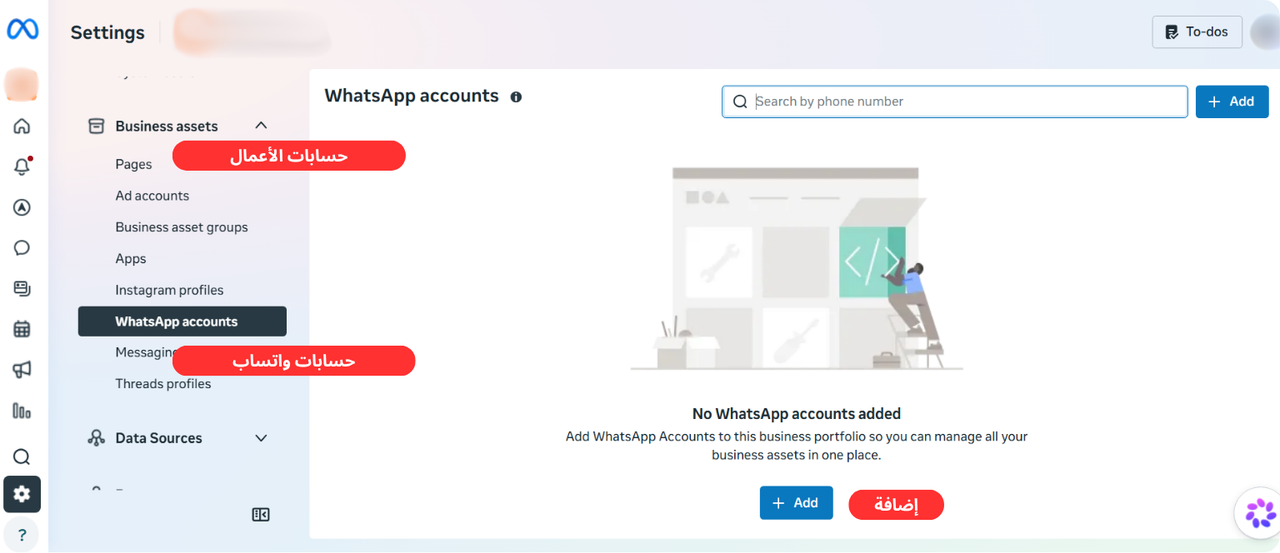
It holds your phone numbers, message templates, and messaging limits, and appears under your Business Portfolio, managed through WhatsApp Manager.
3- Add and verify your phone number
1- Open All Tools → WhatsApp Manager
2- select your WABA
3- open Phone Numbers → Add Phone Number
4- enter your display name (the business name recipients see) and business category, add the number with its country code
5- verify it with the code sent by SMS or call.
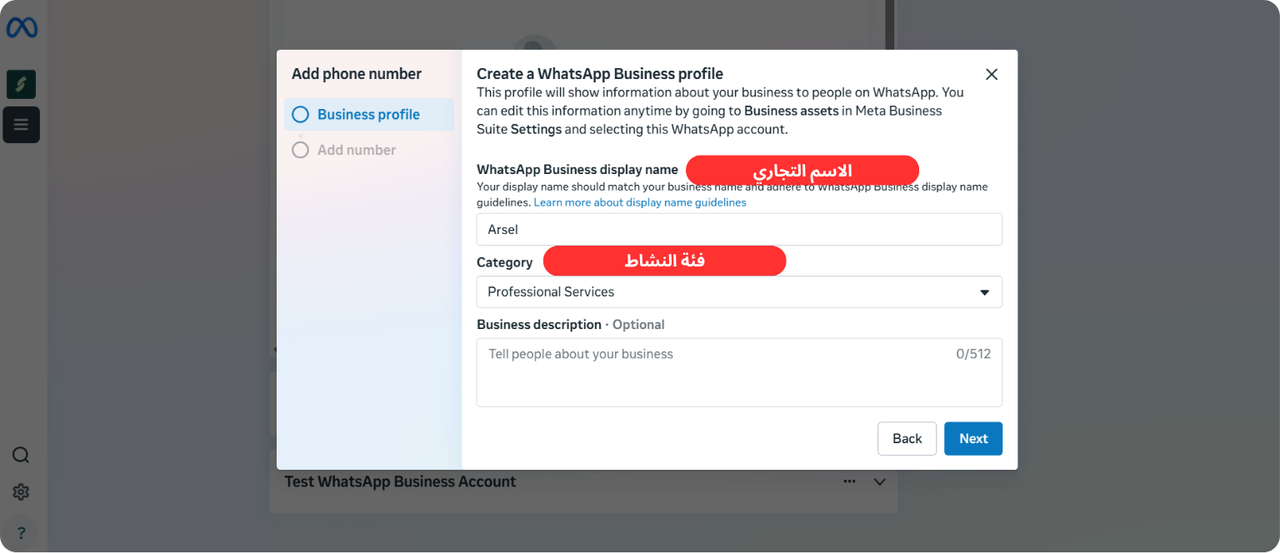
Quick tip: make sure the business details you enter match your official company records. You'll need consistent information if you complete Meta Business Verification later, the step that unlocks higher sending limits, covered in WhatsApp Messaging Limits and Template Types.
Step 2: Connect your WABA to Arsel
With your WhatsApp Business Account ready in Meta, connecting it to Arsel takes about a minute. Open WhatsApp → Setup and click Connect WhatsApp Business Account. A secure Facebook popup opens and walks you through three things:
- Sign in with Facebook — use the login that manages your business.
- Choose your WhatsApp Business Account — select the WABA you created in Meta, and confirm your phone number by SMS or call.
- Start sending — create templates, build campaigns, and set up the chatbot, all from the WhatsApp section.
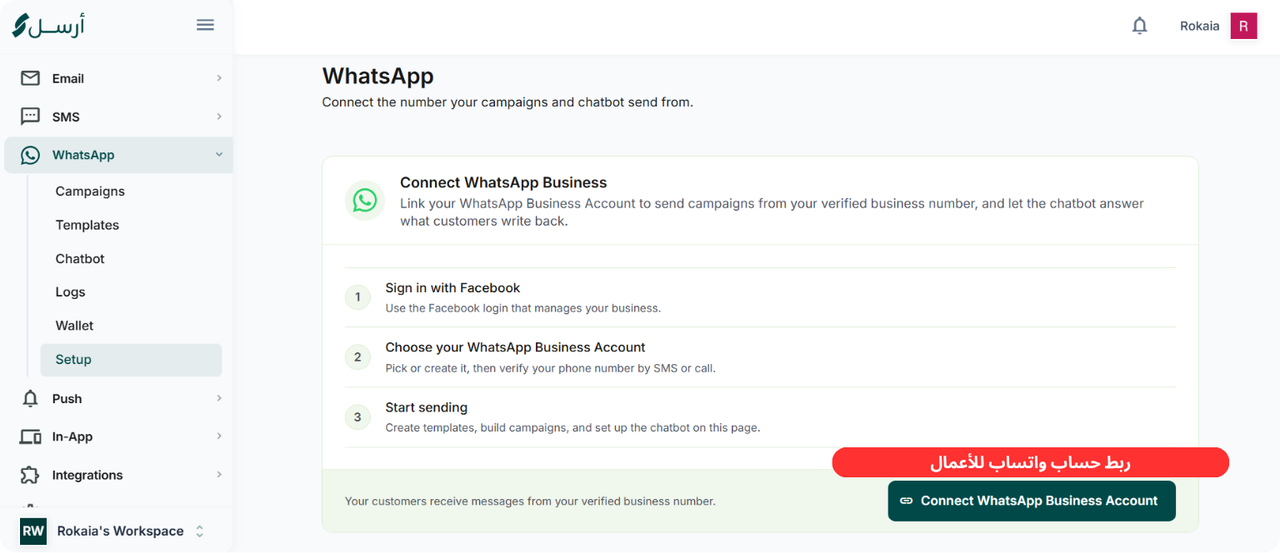
Once connected, your customers receive messages from your verified business number — and the chatbot can answer what they write back.
Can you use an existing WhatsApp number?
Yes — it depends on how the number is used today:
- A new number: register any number that meets Meta's requirements and can receive a verification code.
- A number already on the WhatsApp Business Platform: you can usually transfer or migrate it to another supported provider.
- A number already on the WhatsApp Business app: Meta offers a coexistence option for eligible businesses, letting the app and the Platform run on the same number. Where coexistence isn't available, you'd migrate the number or use a different one.
Coexistence and migration depend on eligibility and provider support. Before you change a number that's already talking to customers, confirm your options first — so you don't accidentally interrupt live conversations.
What's next
Your account is set up and connected. Before you send, two things are worth understanding: the message template types (Marketing, Utility, Authentication) and the messaging limits that cap how many customers you can reach per day — and how to raise them. Both are covered in the companion guide: WhatsApp Messaging Limits and Template Types.
Frequently asked questions
1- How long does WhatsApp Business setup take? Creating your WhatsApp Business Account in Meta (a Business Portfolio, the WABA, and a verified number) is usually same-day if your details are ready. Connecting it to Arsel then takes about a minute through the Setup page. Business Verification can take longer depending on your documents. Realistically, you can be sending within days, not weeks, if your paperwork is ready.
2- Can I use my existing WhatsApp number? It depends on how it's used. A new number can be registered if it can receive a verification code. A number already on the WhatsApp Business Platform can usually be migrated to another provider. A number on the WhatsApp Business app may qualify for coexistence, running the app and Platform together. Confirm your options before changing a number that's already in use.
3- Do I need business verification to connect WhatsApp? You can connect and start testing without it, but Meta Business Verification is what unlocks higher messaging limits and full access. Every serious sender completes it. How it works, and how it raises your limit, is covered in WhatsApp Messaging Limits and Template Types.
Next steps
- WhatsApp Messaging Limits and Template Types
- How to Get Meta Verified
- Smart Sending: Frequency Capping That Protects Results
- View Arsel pricing