Properties are the pieces of information you store about each contact; first name, city, birthday, company, or anything else you track. They're what let you greet people by name, target them precisely, and make every message feel personal instead of generic.
What's the Difference Between Properties and Tags?
Both properties and tags help you organize your contacts, but they serve different purposes.
- Properties: Store specific information about a contact, such as "City: Jeddah" or "Company: ABC".
- Tags: Label contacts based on categories, such as "VIP" or "Interested in Offers".
Use properties when you need to store information for personalization or targeting, and tags when you want to label contacts for easier organization.
Want to learn more about tags? Check out our guide, What Are Tags and How to Use Them in Arsel, to learn how to create and use tags to organize your contacts.
Step 1: Open Contact Properties
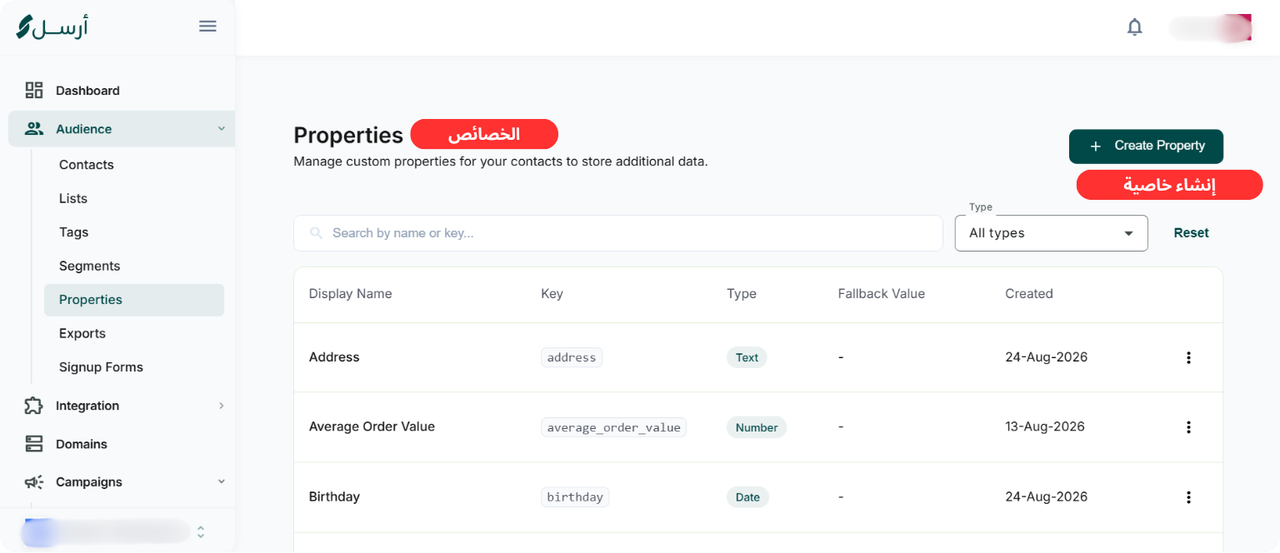
- From the sidebar, go to Audience → Properties.
- You'll see a list of available properties, including their Display Name, Key, Type, Fallback Value, and creation date.
Use the search bar or filter by data type to quickly find the property you need.
Step 2: Create a Custom Property
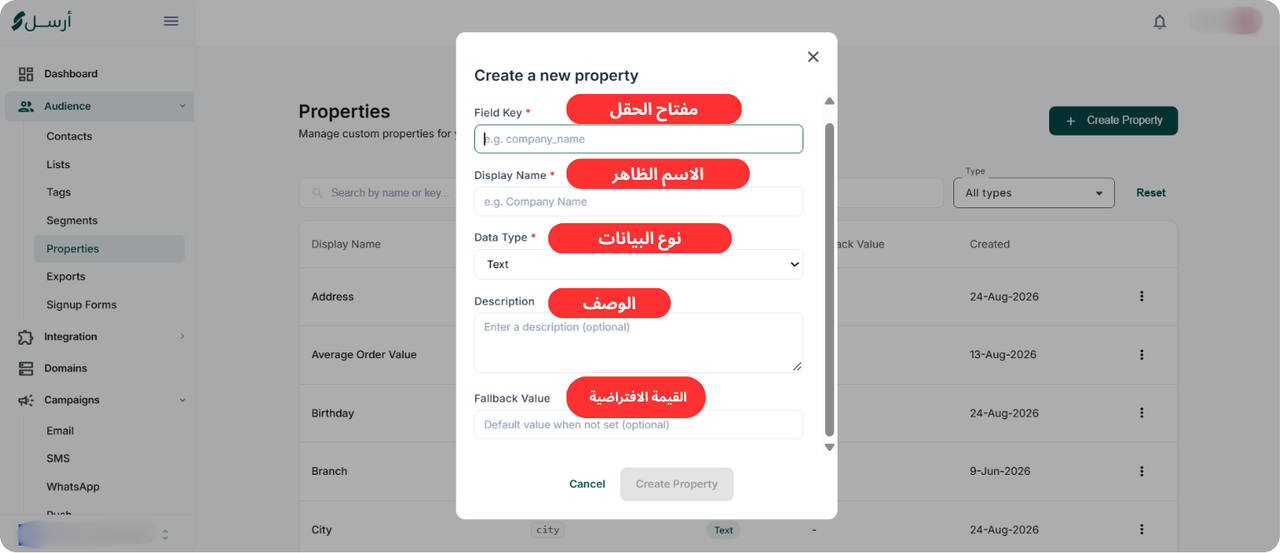
Click Create Property and enter the following details:
- Field Key: A unique identifier for the property, such as
company_name. It can't be changed after creation, so choose carefully. - Display Name: The name shown in Arsel, such as "Company Name".
- Data Type: Text, Date, and so on. This also can't be changed after creation. Pick the right type: a birthday stored as a Date can drive date-based segments, while the same value stored as text can't.
- Description (Optional): A short explanation of the property's purpose.
- Fallback Value (Optional): A default value used when a contact has no information saved for that property.
Once everything is ready, click Create Property to save.
Step 3: Add Information to Your Properties
After creating a property, you can add contact information in different ways:
- Contact Imports: Match columns in your contact file to the correct properties when importing contacts.
- Signup Forms: Collect information from new subscribers using form fields.
- API Integration: Add customer information from other systems through Arsel's API.
For example, if you create a property called "City", you can store each customer's city when importing or collecting their information.
Step 4: Personalize Your Marketing Messages
Contact properties help you create messages that feel more personal.
Instead of sending a generic message like:
"Hello, check out our latest offers!"
You can use the First Name property to send:
"Hi Sara, check out our latest offers!"
If a contact's first name is missing, Arsel can use the Fallback Value you've configured, helping you avoid empty spaces in your messages.
You can use contact properties in your email and SMS campaigns to make your communication more relevant.
Step 5: Segment Your Audience Using Properties
Properties aren't just useful for personalizing messages. You can also use them to target specific groups of customers.
With Arsel's Segment Builder, you can create segments based on contact property values.
For example, you can create a segment of customers whose city is "Riyadh" and send them a campaign tailored to their location.
Keeping your contact information accurate and organized makes it easier to reach the right audience.
Common Mistakes to Avoid
To get the most out of contact properties, keep these tips in mind:
- Choosing the wrong data type: Store dates as Date properties rather than Text so you can use them in date-based conditions.
- Skipping fallback values: Missing information can leave empty spaces in personalized messages.
- Using inconsistent values: For example, "Riyadh" and "riyadh" may be treated as different values when segmenting your audience.
- Collecting unnecessary information: Only ask for customer details you'll actually use in your marketing.
Next Steps
Now that you know how contact properties work, explore more Arsel features to organize your audience and improve your marketing campaigns: